


Free Download

Download Picture Collage Maker for Windows Now!

Awards

Testimonials
 This is a very nice and useful photo collage generator.
- Soft32
Really a great collage software ! Very, very fast and simple.
- Benjamin Glettenberg
Find Us
Photo Collage Templates Tips
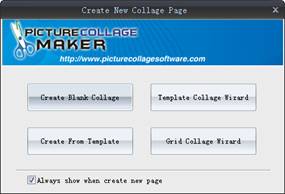
Once installation of Picture Collage Maker has completed, a window popped-up. It displays four methods to create a collage: Create Blank Collage, Create From Template, Template Collage Wizard, Grid Collage Wizard.
Create From Template
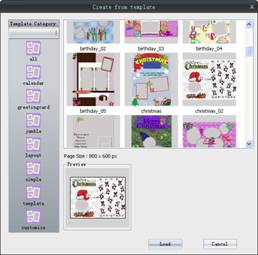
If you choose Create From Template above, the window below will come to your sight. The left pane layouts the style of templates, the chosen style are displayed in the right pane. You can choose your favorite one by clicking it and it can be previewed below.
Create From Blank Collage
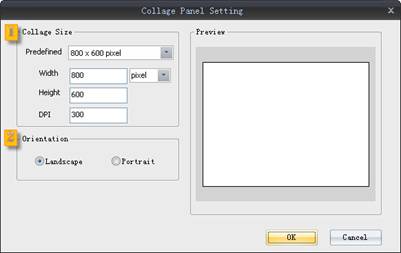
If you choose Create Blank Collage, the Collage Panel Setting dialog box will popup.
- Collage Size: You can choose a proper size to fit the collage well. The width and height value can be filled in.
- Orientation: There are two kinds of orientation, landscape and portrait.
Create From Main Window
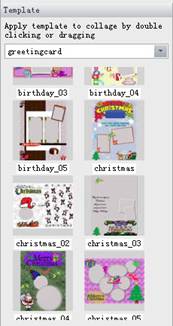
Whether you choose Create From Template or blank collage, template can be easily applied or replaced in the main window.
- Open template pane in the left window. The list of available template image patterns will appear. They are sorted into different categories, you can choose one from sorted list and apply it to collage by double clicking or dragging.
- Click collage menu or template toolbar and choose Open form template. You can choose a template in the popped-up window.
Notes: If you want to save the present template, click collage menu or template toolbar and choose Save As Template.
Picture Collage Maker is a powerful and easy-to-use photo collage maker for Mac OS X & Windows , which allows you to create photo collages, scrapbooks, greeting cards, posters and calendars to share with family and friends.
|
 |
 |